How to Straighten a Skewed Photo of a Document
📸 Why photos of documents come out skewed
When you photograph a paper document with your phone, it usually comes out as a trapezoid. Even when you think you are holding the camera directly above the page, the lens axis is almost always slightly tilted: the far edge of the page looks shorter and the near edge longer. On top of that, shadows from the room lighting — or from your own body — can fall across the page and make the text harder to read.
A skewed photo not only looks unprofessional to the person receiving it; it can also print with uneven text sizes and cause recognition errors when the document is processed with OCR. The fastest fix is a combination of better shooting habits and a perspective correction afterwards.
📷 Five tips for a better photo
Correction works best when the original photo is good. Keep these five points in mind when you shoot:
- Shoot from directly above: hold the phone over the center of the page and adjust until the four edges look as parallel as possible on screen.
- Keep your shadow off the page: if the light is behind you, your own shadow falls on the document. Standing so the light comes from the side or front makes a big difference.
- Use a bright place: in low light the camera raises its sensitivity and text edges turn grainy. Near a window or under bright lighting is ideal.
- Leave a margin around the page: if a corner falls outside the frame, it cannot be corrected. Shoot from a distance where the whole page fits with a little space around it.
- Tap to focus on the text: tap the text on screen to lock focus before you shoot; this reduces blur.
📐 Straightening with perspective correction
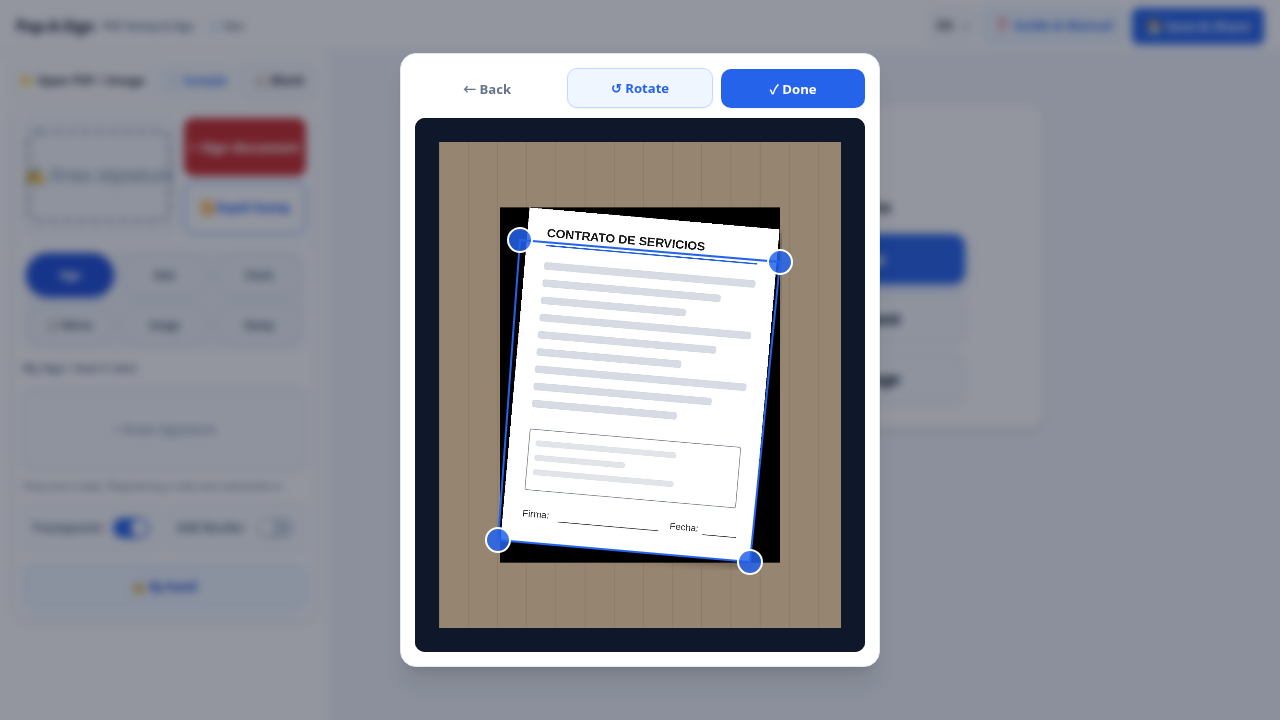
Pop-A-Sign's document scan can turn a trapezoid photo into a clean rectangle, as if it had been shot straight on. All you do is mark the four corners.
-
1
Open the photo
Open the photo of your document in Pop-A-Sign. You can pick a photo you already took, or capture one with the camera and use it right away.
-
2
Choose the document scan
From the document editing menu, choose the scan option. Four corner markers appear over the photo.
-
3
Align the corners with the page
Drag the four markers onto the actual corners of the document. A magnifier follows your finger while you adjust a corner, so you can align it precisely even where your finger covers the page.
-
4
Confirm the correction
Once confirmed, the trapezoid photo becomes a straight-on rectangle. You can then add a stamp or signature and save or share the document.
Good to know: because the correction fixes the photo's perspective, it straightens not only tilts but also the foreshortening caused by shooting at an angle. It is especially handy when re-shooting is not an option — for example, a photo you could only take once while out of the office. See the "Straighten a photo" entry in the user guide for the full operation.
⚠️ What correction can and cannot fix
Perspective correction fixes the shape of the photo. The following problems cannot be recovered by correction, and re-shooting is often faster:
- Out-of-focus or shaky shots: if the text itself is blurry, straightening the shape will not make it readable.
- Heavy shadows or glare: text hidden under a dark shadow or washed out by reflections on glossy paper cannot be restored.
- Too little resolution: if the document was shot from far away and appears small, enlarging it will not bring the text back. Re-shoot from a distance where the page fills most of the frame.
If the photo is bright, in focus, and shows all four corners, even a noticeably skewed shot can usually be corrected to a perfectly usable result.
🎯 Summary
Combine careful shooting — directly above, no shadows, bright light, a margin around the page — with four-corner perspective correction, and photos of paper documents come out clean and straight. Because you can stamp, sign, and send the corrected photo in the same flow, it is a practical first step for handling paper documents entirely on your phone.
📱 Try Pop-A-Sign free now
No sign-up, no installation. Open your browser and go from correction to stamping and saving in one flow.
▶ Launch the free app