Pick. Stamp. Send.Free web tool to add stamps, dates & signatures to PDFs and photos
No sign-up needed. Once stamped, save it and send it straight by chat or email.
No document at hand? No problem. No sign-up.
🔒 No uploadProcessed on your deviceNot stored in the cloud
Features
Tap to previewPhotos taken at an angle, straightened
Even a document photographed at an angle with your phone can be corrected to look as if shot from the front — just line up the four corners. Then stamp it and save it right away.
See the full guideSign with your finger, place it on the page
Draw your signature on the screen and save it, and it is placed on the document. Just move it where you want, adjust the size and confirm.
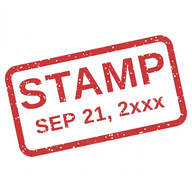
Place a date stamp, then adjust its position and size
Place a date stamp with "Stamp Doc", drag it to the box you want, resize it with the blue circle at the bottom-right, and confirm.
Text under a sticky note is removed when you save
Cover the text you want to hide with a memo using "Sticky-note background" and save: the page is saved as an image, and the text under the note is not kept.
Multi-page documents: switch pages and reorder them
Switch pages with ◀ ▶ as you stamp. In the list of all pages you can drag pages to change their order (on a phone, use the ← → buttons).
Use it anywhere, anytime
📐 Site & drawing approvals on the go
Approve or stamp drawings, invoices, and quotes directly from your phone. Reply instantly without waiting until you're back at your desk.
🚚 Sign delivery receipts right on the spot
Sign receipts or delivery slips the moment packages arrive. Works great even from a photo of a paper slip.
📄 Skip re-printing paper checklists
Snap a photo of any checklist, place checkmarks or status stamps quickly, and send it to your team chat immediately.
🏫 Quick signature for school paperwork
Sign consent forms and agreements with your finger, without needing a printer or scanner.
Frequently Asked Questions
Pricing & safety
Is it really free? Do I need to register?
It is 100% free and requires no account registration.
Do I need to upload my files?
No upload needed. All PDF and image processing happens on your device (in your browser), and nothing is stored in the cloud.
Are generated stamps and signs legally binding?
This tool is designed for everyday operational approvals. It does not replace qualified electronic signature certificates.
How to use
Can I use it on mobile and share via apps?
Yes. Compatible with standard iPhone and Android browsers. You can share finished files directly to email, messaging apps, and work chats.
What files can I open? Is there a size limit?
You can open PDFs (including multi-page PDFs) and JPG/PNG images. On a phone you can use a photo straight from the camera, and on a computer you can also drag and drop a file or paste a copied image (Ctrl+V, or ⌘+V on a Mac). The limit is 20 MB per file. Files over 20 MB are not opened, and the message “The file is too large (max 20 MB).” is shown.
Can I use my own seal or handwritten signature?
Yes, in two ways. First, choose “Sign” in the stamp panel and draw your signature with your finger or mouse (ballpoint or fountain-pen strokes, in navy, black, blue or red ink). Second, choose “Image” and import a photo or image (PNG, JPG or WebP) of a seal you stamped or a signature you wrote on paper; the white background is made transparent automatically, and you can adjust it with the “Threshold” slider. A handwritten signature stays on this device (in your browser) only if you tick “Save on this device” when you save it, so you can use it again next time. If you leave it unticked, it can be used only while the page is open and disappears when you close or reload the page. Images imported with “Image” are not saved on the device.
Can I hide some of the text before sending a document?
Yes. Place a memo with “Memo” in the stamp panel, turn on “Sticky-note background”, and cover the text you want to hide. When you save as PDF, each page with a sticky note is saved as an image exactly as you see it, so the text under the note is removed and can no longer be copied or found by search. Pages without a sticky note keep their original text (except pages you rotated and then stamped, which are saved as images). Documents opened from a photo are always saved as images. Note that areas removed with “Crop” in “Edit doc” are only hidden and remain inside the PDF, so use a sticky note to hide text.
Can it fix photos taken at an angle, or with shadows and distortion?
Yes. The new "Document Scan (perspective correction)" feature straightens it into a single clean rectangular image from a photo taken at any angle — just mark the four corners. A follow loupe keeps the corner precisely visible while you adjust it, never hidden behind your finger. See the User Guide for detailed shooting tips.
Saving & devices
Where are signatures and settings saved?
They are stored locally in your browser storage.
Which browsers are supported?
Supported on latest versions of Chrome, Safari, Edge, and Firefox.
Can I add it to my home screen and use it like an app?
Yes. No installation needed and free — you can add it to your home screen straight from your browser. Do it while the app screen (/app) is open, not this page.
PC (Chrome / Edge)
Open the app screen and click the install icon (⊕) at the right end of the address bar. If it isn't shown, choose "Install Pop-A-Sign" from the ⋮ menu at the top right.
Android (Chrome)
Open the app screen, choose "Install app" (shown as "Add to Home screen" on some devices) from the ⋮ menu at the top right, and select "Install" in the dialog that appears. There is no install button inside the app itself.
iPhone / iPad (Safari)
Open the app screen in Safari, tap the Share button (⎋), select "Add to Home Screen", and tap "Add" at the top right.
Helpful Articles
Guides to help you get more out of stamping and signing PDFs.
How to Stamp a Seal on a PDF from Your Phone
No printing, scanning, or paid apps needed — stamp your document on the spot in 3 steps.
Read more →How to Add a Handwritten Signature to a PDF for Free
Works on iPhone and iPad. Draw your signature with your finger and place it directly on the PDF.
Read more →How to Choose a Secure Tool for Adding E-Signatures to PDFs
Learn the data-leak risks of free PDF editors, and why a fully local, client-side tool is safer.
Read more →How to Straighten a Skewed Photo of a Document
Learn how to fix a document photo that came out as a trapezoid, with five shooting tips and the in-app correction.
Read more →How to Safely Hide Part of a PDF Before Sharing It
How to hide an address, account number, or other sensitive text in a PDF before sharing it.
Read more →How to Turn a Photo of Your Handwritten Signature into a Clean, Usable Image
Import your handwritten signature from a photo and use it on PDFs, with tips for a clean result.
Read more →