How to Safely Hide Part of a PDF Before Sharing It
🙈 When you need to hide just part of a document
You want to hide part of your address on an ID copy before submitting it. You need to share an invoice but not the bank account number. A contract should go to colleagues with the amount redacted. As more documents are sent digitally, "hide only this part" situations keep increasing.
What matters in these moments is how the hiding works. Looking blacked out and actually being removed from the file are two very different things.
🔍 "Invisible" is not the same as "gone"
Some PDF editors hide text by simply placing a black rectangle on top of it. With that approach, the original text data stays inside the PDF — and the person who receives it may be able to read what is underneath by moving the rectangle or copying the text.
The condition for hiding something safely is simple: when the file is saved, the hidden text data itself must no longer be in the file. Pop-A-Sign's sticky-note masking works exactly that way.
🛡 How sticky-note masking works
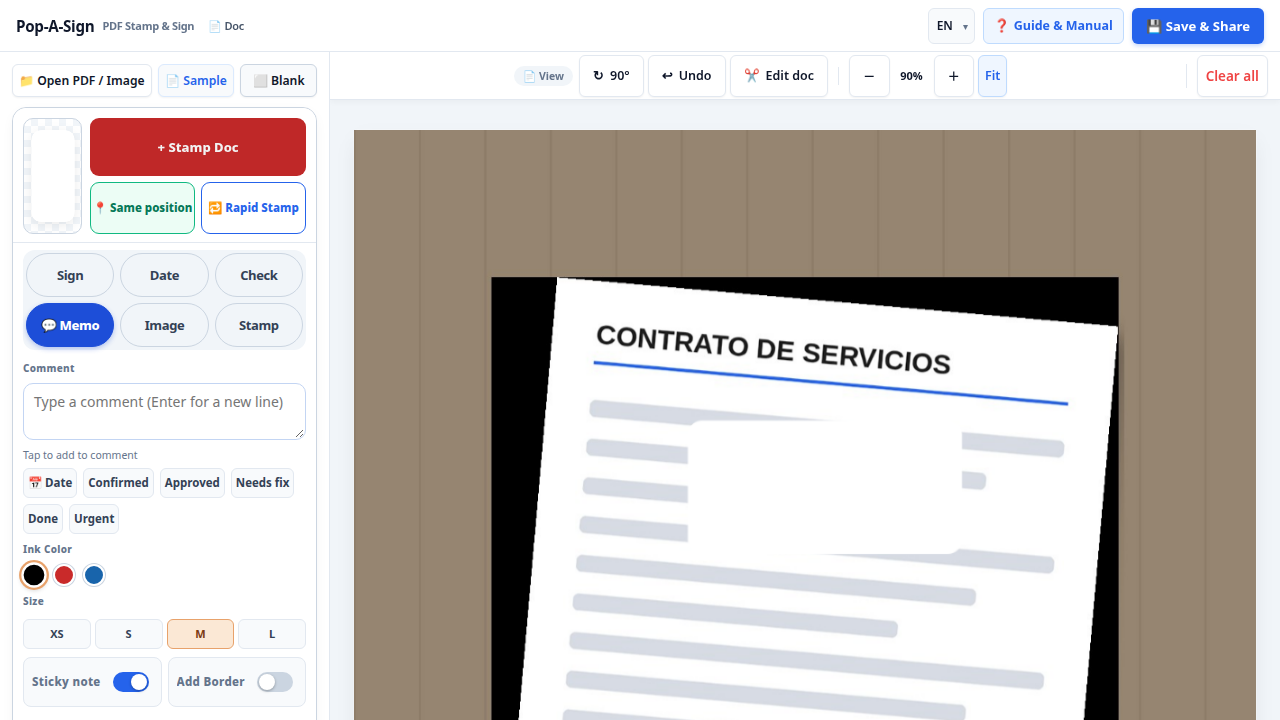
In Pop-A-Sign, you place a Memo over the text as a sticky note. When you save as PDF, any page that carries a sticky note is saved as a flat image of what you see, so the text underneath the note is removed — it can no longer be copied or found by search.
-
1
Place a Memo
From the stamp tools, choose "Memo" and place a note on the document.
-
2
Turn on the sticky-note background
In the memo settings, turn on the sticky-note style background so the note becomes opaque and covers the text.
-
3
Cover the text you want to hide
Drag the note over the text and resize it until the text is fully covered.
-
4
Save as PDF
Save the document as a PDF. Pages with a sticky note are saved as images, and the text underneath is removed. For extra peace of mind, try copying the area afterwards to confirm nothing can be selected.
Good to know: the user guide's "Masking" entry shows the same operation in detail. The same note can serve two purposes: a transparent comment note for everyday use, and an opaque masking note when something needs to be hidden.
⚠️ Please note — cropping does not remove data
⚠️ An area cut away with cropping only becomes invisible; the data remains inside the PDF. When your goal is to hide text, do not rely on cropping — use sticky-note masking instead.
A few more behaviors worth knowing:
- Pages without a sticky note are saved with their original text intact (a page that was rotated and stamped is saved as an image). In a multi-page document, place a note on every page that contains text you want to hide.
- A document opened from a photo is saved as an image from the start, because it never contained text data. Covering part of it with a note is enough to hide it.
- Masked content cannot be restored. Keep the original file separately.
🎯 Summary
When you hide part of a document before sending it, choose a method where the data is removed, not just covered. With Pop-A-Sign's sticky-note masking, you place a note, save as PDF, and the hidden text can neither be copied nor searched. The rule of thumb: masking notes for hiding, cropping only for trimming.
📱 Try Pop-A-Sign free now
No sign-up, no installation. Open your browser and go from masking to saving and sharing in one flow.
▶ Launch the free app